Computers
What is a computer?
As recently as the World War II era, computer was an occupation, defined in the Oxford English Dictionary as one who computes; a calculator, reckoner; specifically a person employed to make calculations in an observatory, in surveying, etc. Modern electronic computers are named after this profession because they have their origins in large-scale mathematical calculations once performed by human computers, In the 1950s the computer was reconstructed to be an electronic data-processing machine rather than a mathematical instrument (Campbell-Kelly et al. 2023).
We will skip through decades of punch cards, tape ribbons, cold war military machinations, the developments of Silicon Valley, etc… leading to the modern computer (see Campbell-Kelly et al. (2023) if you want more detail). There are , however, a couple of important developments that will be of importance going forward.
- The first is the development of the Unix operating system (and C programming language) at Bell Labs during 1969–1974. The use of C made Unix “portable,” so that it could be implemented on any computer system. Up until this point, computers were centralized resources. The clean, minimalist, functional design of Unix made it possible for users to create variants without affecting the inherent reliability of the system. This spawned versions such as the Berkeley Software Distribution (BSD) in 1978, and later in the 1990s Linux (Campbell-Kelly et al. 2023). Mac OSX is also a Unix Variant (Apple Inc. 2011).
- Another important development occurred in 1980 when IBM contracted Microsoft to create an operation system for their personal computer. At the time Microsoft did not have an actual product, so they bought one and tweaked if to make MS-DOS.
Unix variants and Windows are by far the most common operating systems found on general-purpose computers (desktops, laptops, and servers). Figure 1 shows the lineage of common operating systems. GIS applications are almost always run on one of these platforms. By in large computers with OSs derived from UNIX and MS-DOS behave in the same ways, but there are some important differences (for a simple overview of differences see this article). A few of these differences will come up from time to time during this course. The computers in the lab are Windows machines (😐). Many of you are probably using Macs with OSX. Maybe some of you are Linux users (🔥, 💅).
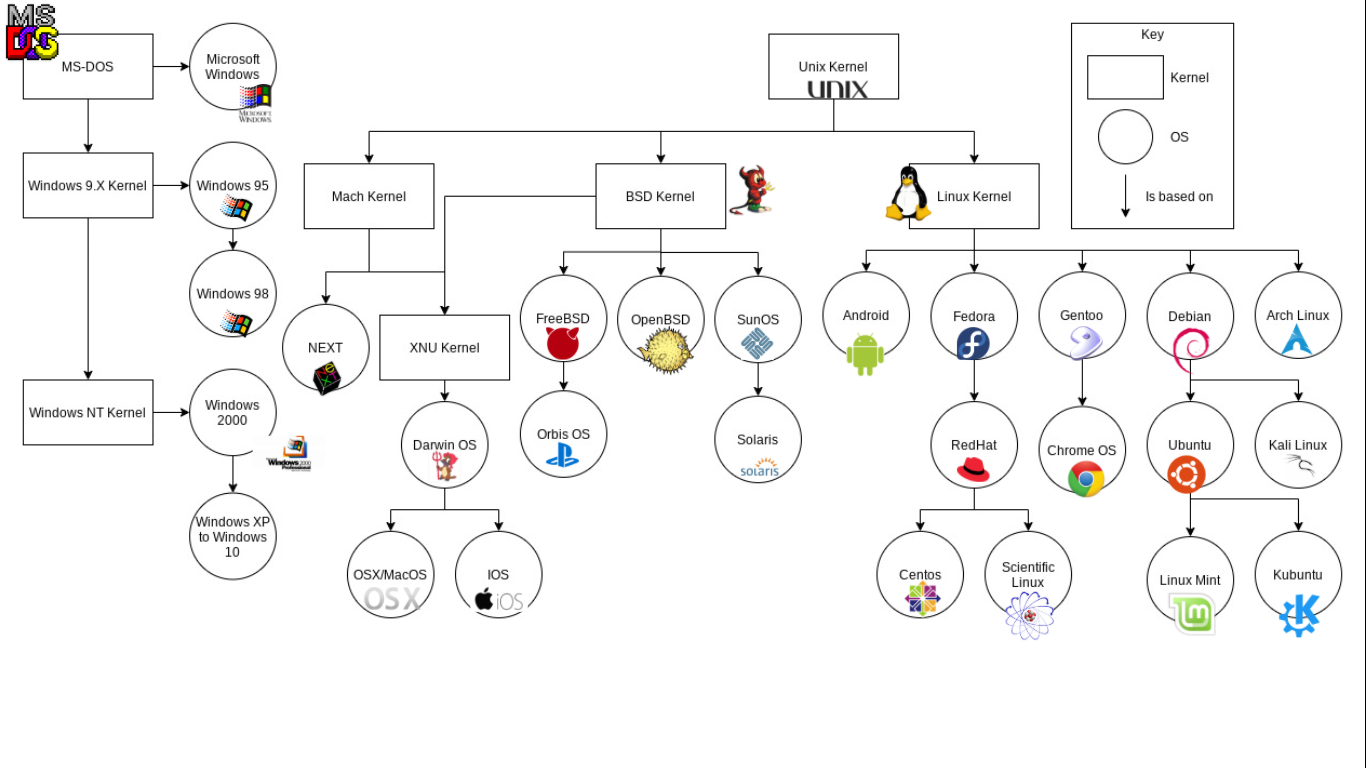
The definition of a computer that we will use for this class is, a machine that manipulates data following a list of programmed instructions. With this definition in mind, it seems that in order to take advantages of the capabilities of computers one must understand data, and how computers follow programmed instructions.
Data
A couple of relevant definitions of data taken from the Oxford English Dictionary are:
- “Related items of (chiefly numerical) information considered collectively, typically obtained by scientific work and used for reference, analysis, or calculation.”
- “Quantities, characters, or symbols on which operations are performed by a computer, considered collectively. Also (in non-technical contexts): information in digital form.”
Data is stored on a computer as zeros and ones (too simple? see Tip 1). When you store a file, the data is stored at some physical location on the disk, and a pointer is saved which is later used to find the file (see Figure 2). The details of this are managed for you by applications, or programming languages, by representing this relationship as human readable symbols.
In most modern computers, files are arranged in a hierarchical file system. The standard Linux filesystem is shown in Figure 3. In a hierarchal filesystem, files are arranged within nested directories, which are just structures (special files on Unix systems) for holding files or other directories. Sometimes directories are refered to as folders, in this class I will use both terms (though if we wanted to be pedantic, we would note that a folder is a metaphor that Graphical User Interfaces use to represent a directory graphically). For example, in Figure 3 you can see that inside of the root directory, /, there is a directory called usr and within usr there is a directory called bin. Inside of bin there are other directories, as well as files, but they are not shown here because they vary from computer to computer.
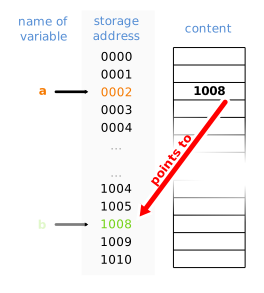
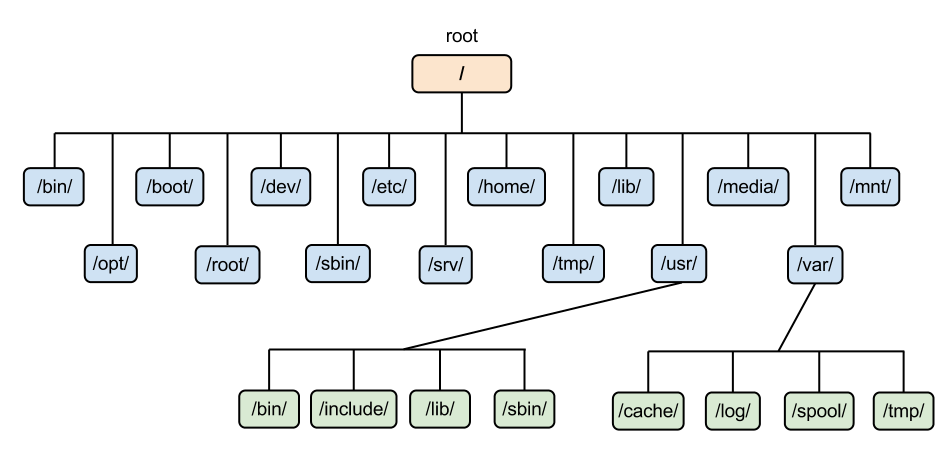
Image Source: Wikimedia /Sven
Paths
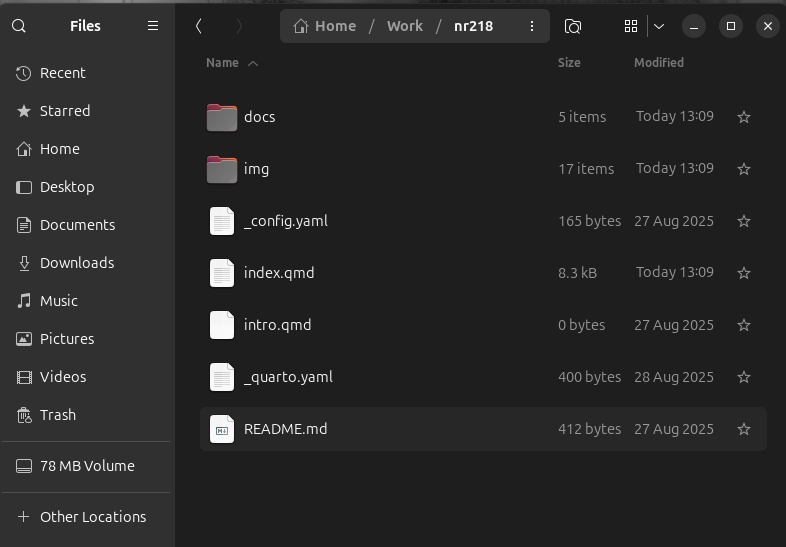
A path is a string that uniquely identifies an item in a file system. Generally, a path is composed of directory names, and optionally a filename, all separated by delimiters. Figure 4 shows the path to index.qmd (a file on my computer) in a terminal. The bottom line of the terminal displays /home/michael/CP/nr218/index.qmd. This is the absolute path or full path to index.qmd. The delimiters are the character /. If you look back to Figure 1, you see that the root directory is just /. The directory called “home” is directly below / in the hierarchy, thus the full path to home is /home (or /home/, where the trailing / signifies that “home” is a directory, which is a special type of file for holding other things). Similarly the full path to the directory “michael” is /home/michael (or /home/michael/) etc… (but, /home/michael/CP/nr218/index.qmd would never be written /home/michael/CP/nr218/index.qmd/ because index.qmd is not a directory, it does not contain other files).

Paths can also be written as a relative path, which is the relative location from the current directory. Relative paths are important to understand because they are how applications typically keep track of files, and they allow for projects to be moved from location to location on a computer, or from one computer to another. For example, when QGIS opens a saved project, the project file tells QGIS to load data from other files. It does this by telling it where to find them relative to the project file. For example if a project file project.qgz is stored in /home/michael/CP/nr218/project along with some data in a subdirectory, data, as shown below,
project
│
├── data
│   └── some_data.tif
└── project.qgz
,then the relative path from project.qgz to some_data.tif would be data/some_data.tif.
The advantage of using relative paths emerges when files are organized all within a project directory. If one were to move the entire project directory to another parent directory, the project file still points to the needed files. If files are outside of the project directory, or full paths were used, this would not be the case. For example if the files were organized like,
some_directory
│
├──project
│  └── project.qgz
└──data
   └── some_data.tif
,then the relative path from project.qgz to some_data.tif would be ../data/some_data.tif, where ../ means one level up in the directory structure. If one were to move the project directory somewhere else, the relative path would no longer be correct and QGIS would not be able to find some_data.tif upon opening project.qgz.
In order for an application to use a file, it must know the path to that file.
If you are saying to yourself, “How are 0s and 1s stored in a computer, that makes no sense, numbers are abstractions but computers are physical objects?”, that is reasonable. The ones and zeros are actually stored as sites holding an electrical charge, or not, but that is a deeper explanation than we need for this course.
Saving your work
Data can be stored on a disk (as we have previously alluded to). This type of memory is called on-disk storage. We call on this type of storage non-volatile because when the program using the data is terminated, or the computer is turned off the data persists to be used later. This is in contrast to Random Access Memory (RAM), which is volatile (if the program terminates, the data held there is lost). In RAM the data sits in volatile memory cells addressed by numeric locations; the CPU accesses it directly with very low latency (quickly). All this is managed by the operating system. Only in advanced cases does the user take an interest of the details of this process.
When an application is running, it typically stores the data it is actively using in RAM (or if it is large in temporary files on-disk) This allows the application to run more quickly. When the user wants to save changes that are held in these temporary forms of memory they must specify a file to save it to. In most GUI based applications this is done via the File menu, or using the keyboard shortcut, Ctrl+S (Cmd+S on macOS).
When you are working in QGIS or any other GIS (or most other types of) application, you need to save to avoid data loss. It is a good idea to frequently save your work by pressing Ctrl+S (Cmd+S on macOS).
The first time you save your work, you will be prompted to choose a file name and location. It is a good idea to put the file you save into a folder specific to the project you are working on, and to put other needed files in the same directory (there are some exceptions to this, but not in this class)